Using Docker
Docker
1. Help
docker help
Common commands
  run         Create and run a new container from an image
  exec        Execute a command in a running container
  ps          List containers
  build       Build an image from a Dockerfile
  pull        Download an image from a registry
  push        Upload an image to a registry
  images      List images
  login       Log in to a registry
  logout      Log out from a registry
  search      Search Docker Hub for images
  version     Show the Docker version information
  info        Display system-wide information
  attach      Attach local standard input, output, and error streams to a running container
  commit      Create a new image from a container's changes
  cp          Copy files/folders between a container and the local filesystem
  create      Create a new container
  diff        Inspect changes to files or directories on a container's filesystem
  events      Get real time events from the server
  export      Export a container's filesystem as a tar archive
  history     Show the history of an image
  import      Import the contents from a tarball to create a filesystem image
  inspect     Return low-level information on Docker objects
  kill        Kill one or more running containers
  load        Load an image from a tar archive or STDIN
  logs        Fetch the logs of a container
  pause       Pause all processes within one or more containers
  port        List port mappings or a specific mapping for the container
  rename      Rename a container
  restart     Restart one or more containers
  rm          Remove one or more containers
  rmi         Remove one or more images
  save        Save one or more images to a tar archive (streamed to STDOUT by default)
  start       Start one or more stopped containers
  stats       Display a live stream of container(s) resource usage statistics
  stop        Stop one or more running containers
  tag         Create a tag TARGET_IMAGE that refers to SOURCE_IMAGE
  top         Display the running processes of a container
  unpause     Unpause all processes within one or more containers
  update      Update configuration of one or more containers
  wait        Block until one or more containers stop, then print their exit codes
Management commands
  builder     Manage builds
  buildx*     Docker Buildx (Docker Inc., v0.12.0-desktop.2)
  compose*    Docker Compose (Docker Inc., v2.23.3-desktop.2)
  container   Manage containers
  context     Manage contexts
  dev*        Docker Dev Environments (Docker Inc., v0.1.0)
  extension*  Manages Docker extensions (Docker Inc., v0.2.21)
  feedback*   Provide feedback, right in your terminal! (Docker Inc., 0.1)
  image       Manage images
  init*       Creates Docker-related starter files for your project (Docker Inc., v0.1.0-beta.10)
  manifest    Manage Docker image manifests and manifest lists
  network     Manage networks
  plugin      Manage plugins
  sbom*       View the packaged-based Software Bill Of Materials (SBOM) for an image (Anchore Inc., 0.6.0)
  scan*       Docker Scan (Docker Inc., v0.26.0)
  scout*      Docker Scout (Docker Inc., v1.2.0)
  system      Manage Docker
  trust       Manage trust on Docker images
  volume      Manage volumes
| Command | What it does |
|---|---|
docker info |
|
docker version |
|
systemctl status docker |
The Docker service listens on this socket unix:///var/run/docker.sock |
● docker.service - Docker Application Container Engine
     Loaded: loaded (/lib/systemd/system/docker.service; enabled; vendor preset: enabled)
     Active: active (running) since Sun 2023-12-10 09:16:45 AEDT; 1h 2min ago
TriggeredBy: ● docker.socket
       Docs: https://docs.docker.com
   Main PID: 12734 (dockerd)
      Tasks: 11
     Memory: 62.6M
        CPU: 1.856s
     CGroup: /system.slice/docker.service
             └─12734 /usr/bin/dockerd -H fd:// --containerd=/run/containerd/containerd.sock

Dec 10 09:16:38 blue dockerd[12734]: time="2023-12-10T09:16:38.637659743+11:00" level=info msg="detected 127.0.0.53 nameserver, assumi>
Dec 10 09:16:40 blue dockerd[12734]: time="2023-12-10T09:16:40.743295073+11:00" level=info msg="[graphdriver] using prior storage driv>
Dec 10 09:16:40 blue dockerd[12734]: time="2023-12-10T09:16:40.767945298+11:00" level=info msg="Loading containers: start."
Dec 10 09:16:41 blue dockerd[12734]: time="2023-12-10T09:16:41.662452038+11:00" level=info msg="Default bridge (docker0) is assigned w>
Dec 10 09:16:41 blue dockerd[12734]: time="2023-12-10T09:16:41.928064213+11:00" level=info msg="Loading containers: done."
Dec 10 09:16:42 blue dockerd[12734]: time="2023-12-10T09:16:42.170197693+11:00" level=info msg="Docker daemon" commit=311b9ff graphdri>
Dec 10 09:16:42 blue dockerd[12734]: time="2023-12-10T09:16:42.170259477+11:00" level=info msg="Daemon has completed initialization"
Dec 10 09:16:45 blue dockerd[12734]: time="2023-12-10T09:16:45.891901044+11:00" level=info msg="API listen on /run/docker.sock"
Dec 10 09:16:45 blue systemd[1]: Started Docker Application Container Engine.
Dec 10 10:00:35 blue dockerd[12734]: 2023/12/10 10:00:35 http2: server: error reading preface from client @: read unix /run/docker.soc>
2. Images
| Command | What it does |
|---|---|
docker images -a |
|
docker images --digests |
Show Image digests as well. |
docker images -aq |
|
docker history <image id> |
Show history of an image |
docker pull <image id> |
|
docker pull -a <image id> |
|
docker pull <image id>:<tag> |
|
docker build . –t my-app:1.0 |
|
docker rmi <image id> |
Remove one or more images |
docker image rm amazonlinux |
Another way to remove a image |
docker image prune –a –f |
Remove all images including the dangling images ; -a: all; -f: force |
docker tag <image> my-image:1.0 |
|
docker inspect <image> |
Inspect an image |
docker manifest inspect ryandam/funbox |
|
docker image pull ubuntu:20.04 |
New syntax to pull an image |
docker image list --digests ubuntu:20.04 |
Show digest |
docker image history ubuntu:20.04 |
|
docker image remove ubuntu:20.04 |
An Image ID is checksum of local image. It is the checksum of a JSON config file of the image.
Saving an Image
cd /tmp/test
docker save ryandam/funbox -o funbox.tar
tar xvf funbox.tar
3. Containers
| Command | What it does |
|---|---|
docker run <image id> |
|
docker run –d <image id> |
Run in detached mode |
docker run –it <image id> bash |
Run bash shell process in the container and connect to the Standard Input |
docker exec -it adoring_tu bash |
Connect to a executing container |
docker stop <container id> |
|
docker rm <container> |
|
docker container prune |
Remove all stopped containers |
docker start <container id> |
|
docker restart <container id> |
|
docker pull docker.io/ryandam/funbox@sha256:f8bd35cc40f6exxx |
Pull an image using digest. A Digest is created when an Image is pushed to registry. |
docker run --rm ubuntu cat /etc/os-release |
Run a container to execute a command. |
docker run --rm -it --platform linux/ppc64le ryandam/cmatrix |
Testing a container for a different platform |
4. Interacting with a container
| Command | What it does |
|---|---|
docker ps |
|
docker ps –a |
|
docker logs <container id> |
|
docker exec -it <container id> bash |
Start a bash process inside a running container |
docker inspect <container id> |
|
docker inspect --format='{{.State.Pid}}' <container> |
Get Process ID |
docker run --entrypoint "/bin/sh" -it --name my-time-zone-converter mcp/time-zone-converter |
Overriding entry point |
5. Networking
| Command | What it does | |
|---|---|---|
docker inspect <container> |
Inspect container settings | |
docker inspect --format='{{.NetworkSettings.IPAddress}}' <container> |
IP address of the container | |
docker port ecstatic_mahavira |
List port mappings or a specific mapping for the container | |
docker top ecstatic_mahavira |
Display the running processes of a container | |
docker network inspect wordpress-network |
Inspect a network |
6. Persistence
| Command | What it does |
|---|---|
docker volume create jenkins_home |
Create a volume |
docker run -d -p 8080:8080 -p 50000:50000 --restart=on-failure -v jenkins_home:/var/jenkins_home jenkins/jenkins:lts-jdk17 |
Docker volume jenkins_home is automatically created. |
docker volume ls |
|
docker volume rm <test-vol> |
|
docker run -d --rm -p 80:80 -v /tmp/my_web_page:/usr/share/nginx/html nginx |
Share a host system directory with container. |
7. Metadata
| Command | What it does |
|---|---|
docker image inspect --format='{{json .Config.Labels}}' myimage |
View image’s labels |
8. Scenarios
1. Executing a process when creating a container
docker run ubuntu sleep 30
docker run ubuntu:23.04 cat /etc/*release*
A container is already running. how to start a new process in the same container?
docker run -it ubuntu bash
docker exec youthful_shannon cat /etc/*release*
2. Display the running processes of a container
➜ docker top 9f
UID                 PID                 PPID                C                   STIME               TTY                 TIME                CMD
1000                3579                3557                0                   02:02               ?                   00:00:00            /usr/bin/tini -- /usr/local/bin/jenkins.sh
1000                3606                3579                4                   02:02               ?                   00:04:25            java -Duser.home=/var/jenkins_home -Djenkins.model.Jenkins.slaveAgentPort=50000 -Dhudson.lifecycle=hudson.lifecycle.ExitLifecycle -jar /usr/share/jenkins/jenkins.war
- This is the view from host machine.
➜ docker exec -it 9f bash

# -w: wide output.  Use this option twice for unlimited width.
➜ ps -ewwf
UID        PID  PPID  C STIME TTY          TIME CMD
jenkins      1     0  0 02:02 ?        00:00:00 /usr/bin/tini -- /usr/local/bin/jenkins.sh
jenkins      7     1  3 02:02 ?        00:04:25 java -Duser.home=/var/jenkins_home -Djenkins.model.Jenkins.slaveAgentPort=50000 -Dhudson.lifecycle=hudson.lifecycle.ExitLifecycle -jar /usr/share/jenkins/jenkins.war
- When I connect to the container, and list the processes, it is the same view.
- However, the Process IDs are different.
2. Remove all containers & Images
# Remove all the running containers first before removing all the images.
docker stop $(docker ps -aq)
docker rm $(docker ps -aq)
docker rmi -f $(docker images -qa)
-a- Show all containers-q- Only display container IDs
3. Port mapping
# Maps port 80 on the host with port 8000 in the container.
# Maps /tmp/Jenkins on host with /var/Jenkins_home in the container.
docker run -p 80:8000 -p 50000:50000 -v /tmp/jenkins:/var/jenkins_home -u root jenkins/jenkins:lts
4. Docker volumes
- A Docker volume is like any other Docker object (Image, Container). It has an ID, name, and other properties.
- It can be created, attached, deleted.
docker volume create jenkins-volume

docker run --name volume-test \
	-v jenkins-volume:/var/jenkins_home \
	-d \
	-u root \
	-p 80:8080 -p 50000:50000 \
	jenkins/jenkins:lts-jdk17
- Here, we mapped a Docker volume
jenkins-volumewith a directory/var/jenkins_home, which will be created when the container starts. - Anything written to the
/var/jenkins_homepersists even after this container is removed. - The volume can also be shared with other containers
Where does Docker keep the volumes?
docker inspect jenkins-volume
[
    {
        "CreatedAt": "2023-12-09T20:36:46Z",
        "Driver": "local",
        "Labels": null,
        "Mountpoint": "/var/lib/docker/volumes/jenkins-volume/_data",
        "Name": "jenkins-volume",
        "Options": null,
        "Scope": "local"
    }
]
5. Bind mount
docker run --name bind-mount-test \
	-v /tmp/jenkins:/var/jenkins_home \
	-u root \
	-p 80:8080 -p 50000:50000 \
	jenkins/jenkins:lts-jdk17
6. Copy a file from Host machine to a container
docker cp items/file-from-host.txt my-container:/
7. Sharing volumes across containers
docker run --name volume-test \
	-v jenkins-volume:/var/jenkins_home \
	-u root \
	-p 80:8080 -p 50000:50000 \
	jenkins/jenkins:lts-jdk17
- This uses a volume
jenkins-volume
docker run -it --name log_checker --volumes-from volume-test ubuntu
- Volumes can be shared using
--volumes-from(Mount volumes from the specified container(s)) option.
Now, log in to the ubuntu container. A directory /var/jenkins_home is already created and contains the files which is created by the volume-test container. Any changes happening in the volume-test container’s /var/jenkins_home directory are visible in the ubuntu container.
Using networks
docker network --help
Usage:  docker network COMMAND

Manage networks

Commands:
  connect     Connect a container to a network
  create      Create a network
  disconnect  Disconnect a container from a network
  inspect     Display detailed information on one or more networks
  ls          List networks
  prune       Remove all unused networks
  rm          Remove one or more networks

Run 'docker network COMMAND --help' for more information on a command.
Create a custom network
docker network create custom-network
docker network ls
docker network inspect custom-network
[
    {
        "Name": "custom-network",
        "Id": "78a9b11a16fc5a1bbdde6bedb00378be635726c81e79cebfa798c1de62e45ef6",
        "Created": "2023-12-09T21:14:44.369168821Z",
        "Scope": "local",
        "Driver": "bridge",
        "EnableIPv6": false,
        "IPAM": {
            "Driver": "default",
            "Options": {},
            "Config": [
                {
                    "Subnet": "172.18.0.0/16",
                    "Gateway": "172.18.0.1"
                }
            ]
        },
        "Internal": false,
        "Attachable": false,
        "Ingress": false,
        "ConfigFrom": {
            "Network": ""
        },
        "ConfigOnly": false,
        "Containers": {},
        "Options": {},
        "Labels": {}
    }
]
- A subnet
172.18.0.0/16is created. - It is a Bridge network.
A Network Interface is also created on the host.
ifconfig
br-7722b4ffd202: flags=4099<UP,BROADCAST,MULTICAST>  mtu 1500
        inet 172.18.0.1  netmask 255.255.0.0  broadcast 172.18.255.255
        ether 02:42:c6:1a:a3:d7  txqueuelen 0  (Ethernet)
        RX packets 0  bytes 0 (0.0 B)
        RX errors 0  dropped 0  overruns 0  frame 0
        TX packets 0  bytes 0 (0.0 B)
        TX errors 0  dropped 0 overruns 0  carrier 0  collisions 0
Containers in a custom network can communicate with each other using hostnames.
Sample #1 - Wordpress, MySQL, MySQLAdmin containers in a custom network
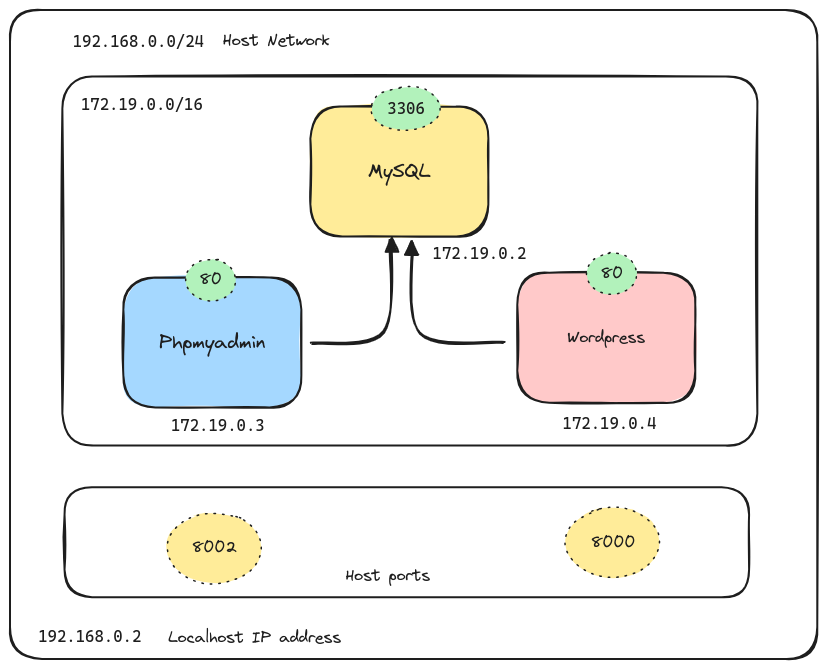
Create a network
docker network create wordpress-network
docker network ls
docker network inspect wordpress-network
MySQL container
- Wordpress needs a Database.
docker run \
	--network wordpress-network \
	--env MYSQL_ROOT_PASSWORD=password \
	--env MYSQL_DATABASE=wordpress \
	--env MYSQL_USER=wordpress \
	--env MYSQL_PASSWORD=password \
	--name mysql \
	--detach \
	mysql
- The mysql container takes a minute to start the Database. monitor the logs using
docker logs <id> - When it is ready, there should be
ready for connectionsmessage.
Phpmyadmin container
# PMA_HOST - Host/Ip address of MySQL DB.
docker run \
	--network wordpress-network \
	--env PMA_HOST=mysql \
	--publish 8002:80 \
	--name phpadmin \
	--detach \
	phpmyadmin/phpmyadmin
Wordpress container
docker run \
	--network wordpress-network \
	--publish 8000:80 \
	--name wordpress \
	--detach \
	wordpress
How to limit resources given to a container?
Viewing any running container’s usage
Running Jenkins server
https://github.com/jenkinsci/docker/blob/master/README.md
docker run -d -p 8080:8080 -p 50000:50000 --restart=on-failure -v jenkins_home:/var/jenkins_home jenkins/jenkins:lts-jdk17
- This will store the workspace in
/var/jenkins_home. All Jenkins data lives in there - including plugins and configuration. - This will automatically create a
jenkins_homedocker volume on the host machine. Docker volumes retain their content even when the container is stopped, started, or deleted.
Avoid using a bind mount from a folder on the host machine into /var/jenkins_home, as this might result in file permission issues (the user used inside the container might not have rights to the folder on the host machine).
Error #1
I uninstalled Docker Desktop GUI App from my Ubuntu 22.04. then, I was getting this error - ERROR: Cannot connect to the Docker daemon at unix:///home/ray/.docker/desktop/docker.sock. Is the docker daemon running?
- https://stackoverflow.com/questions/44678725/cannot-connect-to-the-docker-daemon-at-unix-var-run-docker-sock-is-the-docker
- This is the way to properly uninstall Docker desktop - https://docs.docker.com/desktop/uninstall/
docker context ls
NAME              DESCRIPTION                               DOCKER ENDPOINT                                ERROR
default           Current DOCKER_HOST based configuration   unix:///var/run/docker.sock
desktop-linux *   Docker Desktop                            unix:///home/ray/.docker/desktop/docker.sock
Switch context to default.
docker context use default
default
Current context is now "default"
Cross compilation
To build images for different architectures.
docker buildx create --name buildx-multi-arch
docker buildx use buildx-multi-arch

docker login
docker buildx build --no-cache --platform linux/amd64,linux/arm64/v8 . -t ryandam/cmatrix --push
- This example creates an image for
linux/amd64,linux/arm64/v8.
2. Using Entrypoint & Cmd
https://docs.docker.com/engine/reference/builder/#understand-how-cmd-and-entrypoint-interact
ENTRYPOINT has two forms - The exec form, which is the preferred form:
ENTRYPOINT ["executable", "param1", "param2"]
Command line arguments to docker run <image> will be appended after all elements in an exec form ENTRYPOINT, and will override all elements specified using CMD.
Understand how CMD and ENTRYPOINT interact
Both CMD and ENTRYPOINT instructions define what command gets executed when running a container. There are few rules that describe their co-operation.
- Dockerfile should specify at least one of
CMDorENTRYPOINTcommands. ENTRYPOINTshould be defined when using the container as an executable.CMDshould be used as a way of defining default arguments for anENTRYPOINTcommand or for executing an ad-hoc command in a container.CMDwill be overridden when running the container with alternative arguments.
Sample
app.py
import sys
arg = sys.argv[1]
print(arg)
Dockerfile
FROM python:3.10

WORKDIR /
COPY ./app.py /
ENTRYPOINT ["python", "app.py"]
CMD ["hello"]
ENTRYPOINTis specified using exec form. It invokes a python script.CMDprovides a default argumenthello.
# No arguments provided. The value specified with CMD "hello" will be taken as
# argument to app.py
➜ docker run dockertest

# "Hello world" is used as the argument to app.py
➜ docker run dockertest "Hello world"

# "Hello world, " is used as the argument to app.py
➜ docker run dockertest "Hello world, "
hello
Hello world
Hello world,
3. Using variables when building image
The ARG instruction defines a variable that users can pass at build-time to the builder with the docker build command using the --build-arg <varname>=<value> flag.
Dockerfile
FROM ubuntu
ARG CONT_IMG_VER=v1.0.0
RUN echo $CONT_IMG_VER
- A default value is provided to
CONT_IMG_VER
docker build --build-arg CONT_IMG_VER=v2.0.1 -t my-image .
- When building the image, a new value is supplied.